Firewall in MikroTik can be easily configured so that the router becomes either open to the internet or inaccessible even to an engineer. The main rule: the order of rules is important.
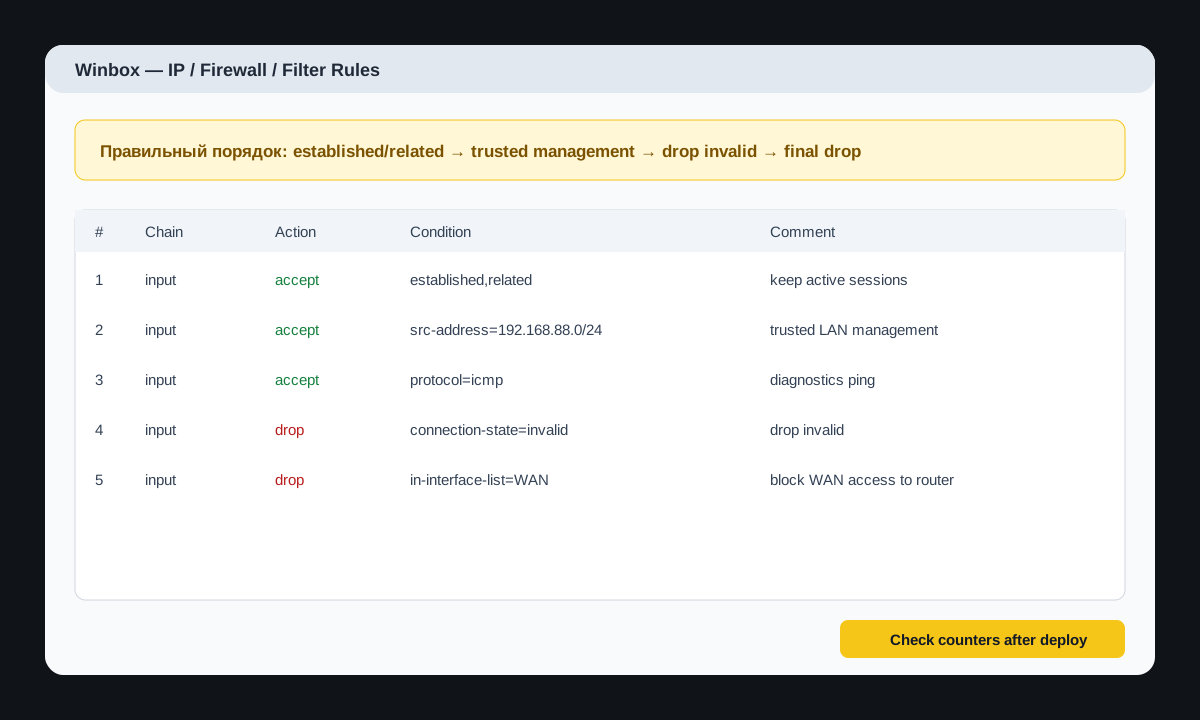
What the input chain protects
input — this is traffic to the router itself: Winbox, SSH, WebFig, DNS, ping, VPN port. This is not client traffic through the router; for that, forward is used.
Safe minimum
/ip firewall filter
add chain=input action=accept connection-state=established,related comment="accept established/related"
add chain=input action=accept src-address=192.168.88.0/24 comment="trusted LAN management"
add chain=input action=accept protocol=icmp comment="allow ICMP diagnostics"
add chain=input action=drop connection-state=invalid comment="drop invalid"
add chain=input action=drop in-interface=ether1 comment="drop WAN access to router"
How to do it via Winbox
- Open IP → Firewall → Filter Rules.
- Create rules in the same order as in the example.
- For the management rule, specify only the trusted LAN subnet or VPN subnet.
- As the last rule, block access to the router from WAN.
- After applying, check counters and access logic.
Checking counters
/ip firewall filter print stats
/ip firewall connection print count-only
/log print where topics~"firewall"
How not to lose access
- Work via Safe Mode.
- Before the final drop, add an allow rule for your LAN or VPN.
- Do not open Winbox/SSH to the entire internet.
- If remote access is needed, it's better to use WireGuard.
Bad example
/ip firewall filter add chain=input action=drop comment="drop all"Such a rule without prior allow rules can instantly block access to the router.
At SDS facilities, every firewall rule must have a comment. Six months later, another engineer should understand why this rule exists.